Intro to Roles and Permissions
Roles and permissions allow you to create restricted access to surveys , contacts and resources created on Sopact Sense.
In this tutorial we'll look at
- How to create these roles
- Configuring what resources the roles have access to (Surveys, contacts, specific data within surveys)
- Assign the roles to specific users
Fundamentals
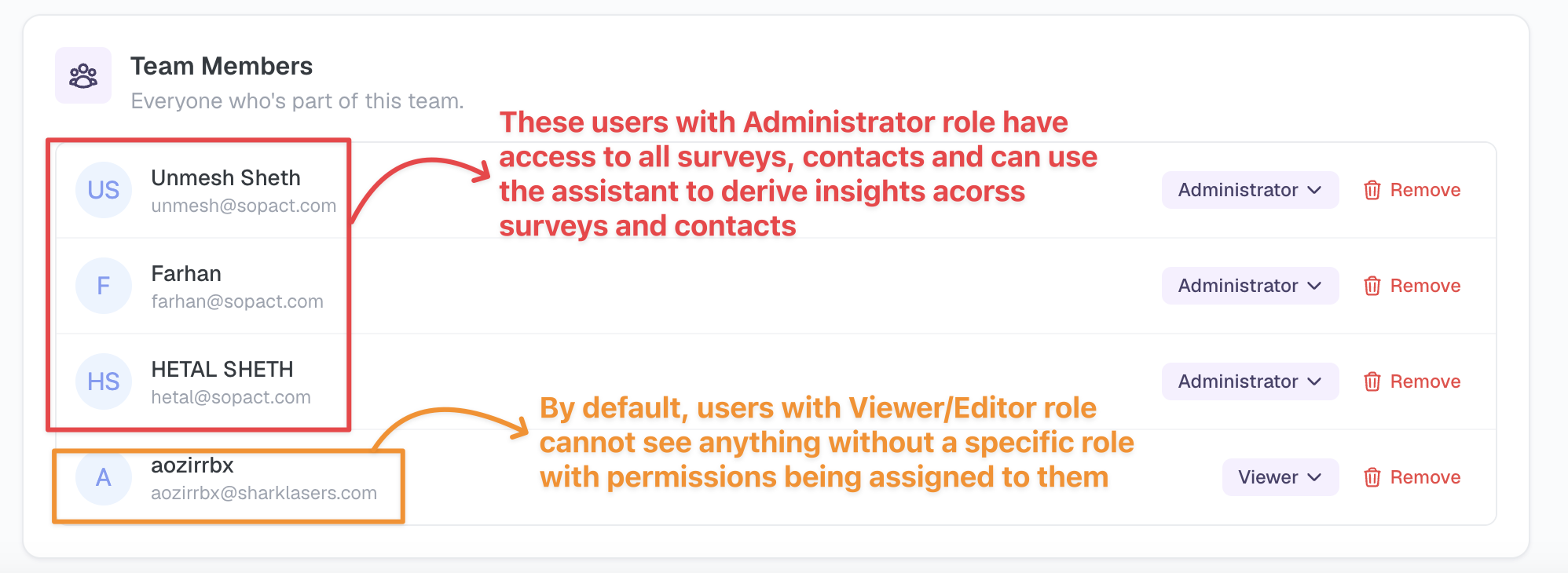
All users who are owners or admins by default have access to all surveys, contacts
Users who are invited with Viewer/Editor role do not see anything by default, they need to be assigned specific custom role with specific permissions to access resources
3 steps to configure custom roles and assigning them permission
- Create a role
- Assign survey, contacts that the tole should have access to
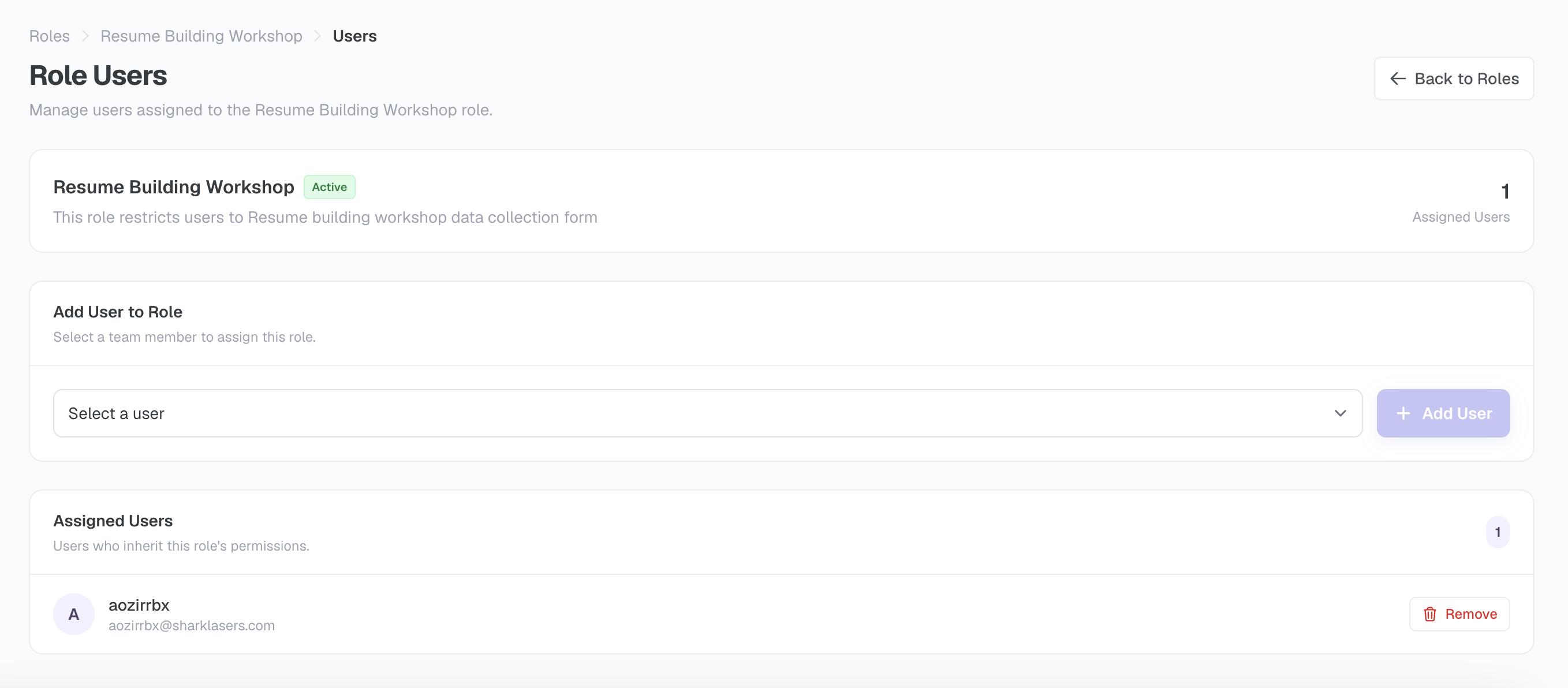
- Assign users to the role
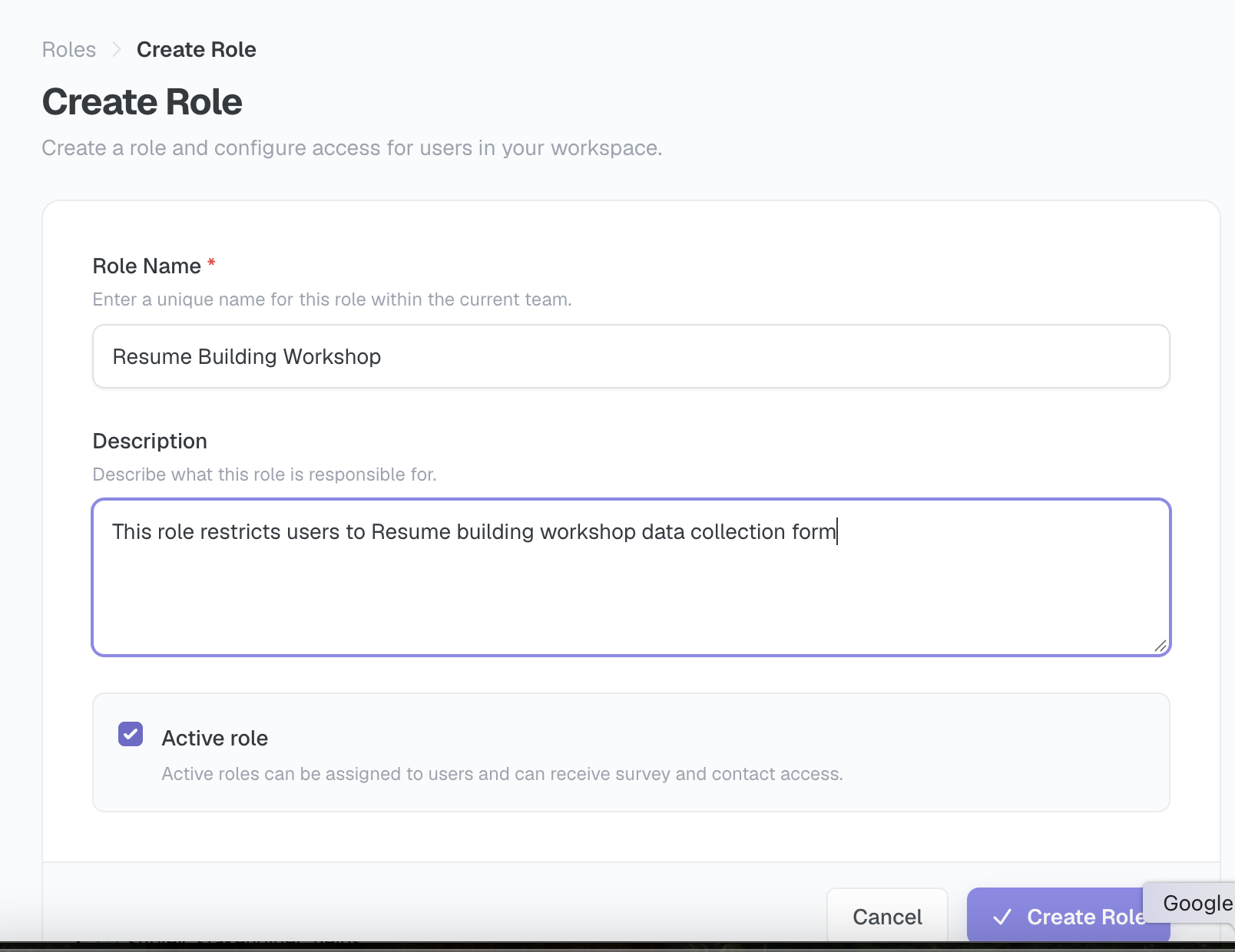
Step 1: Create a role
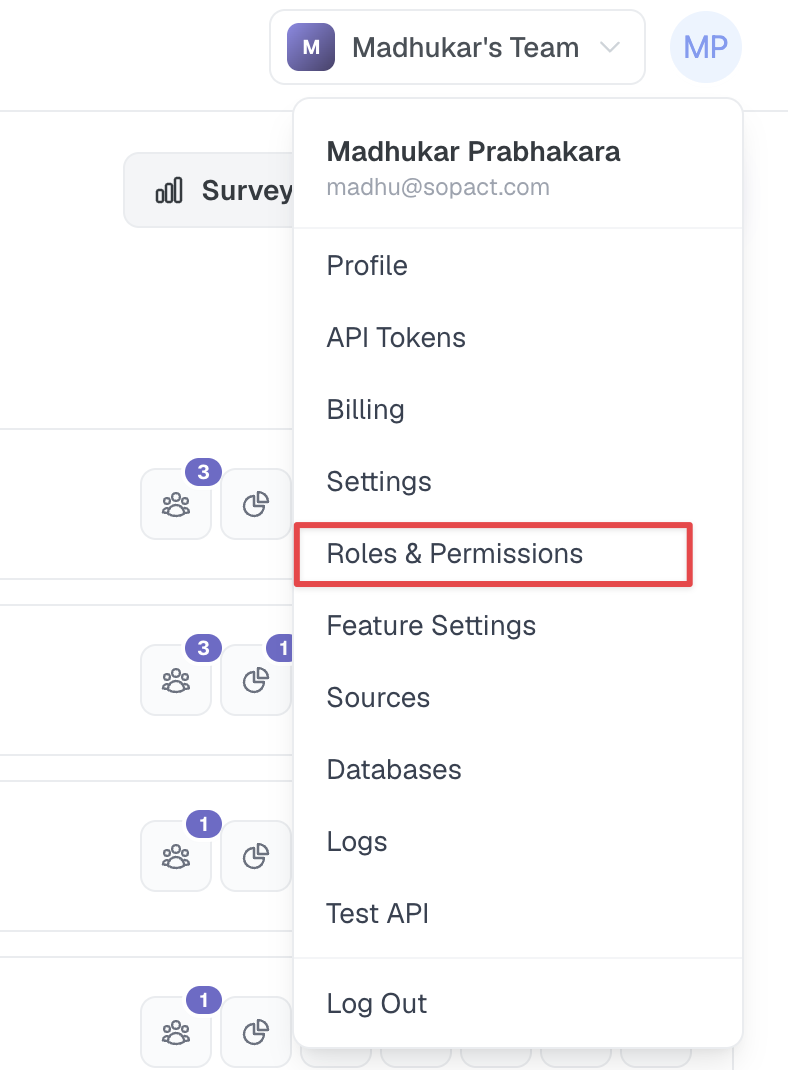
Navigate to Roles and Permissions by clicking on your profile on the top-right corner
Create a role, like so
Step 2: Assign required permissions to the role
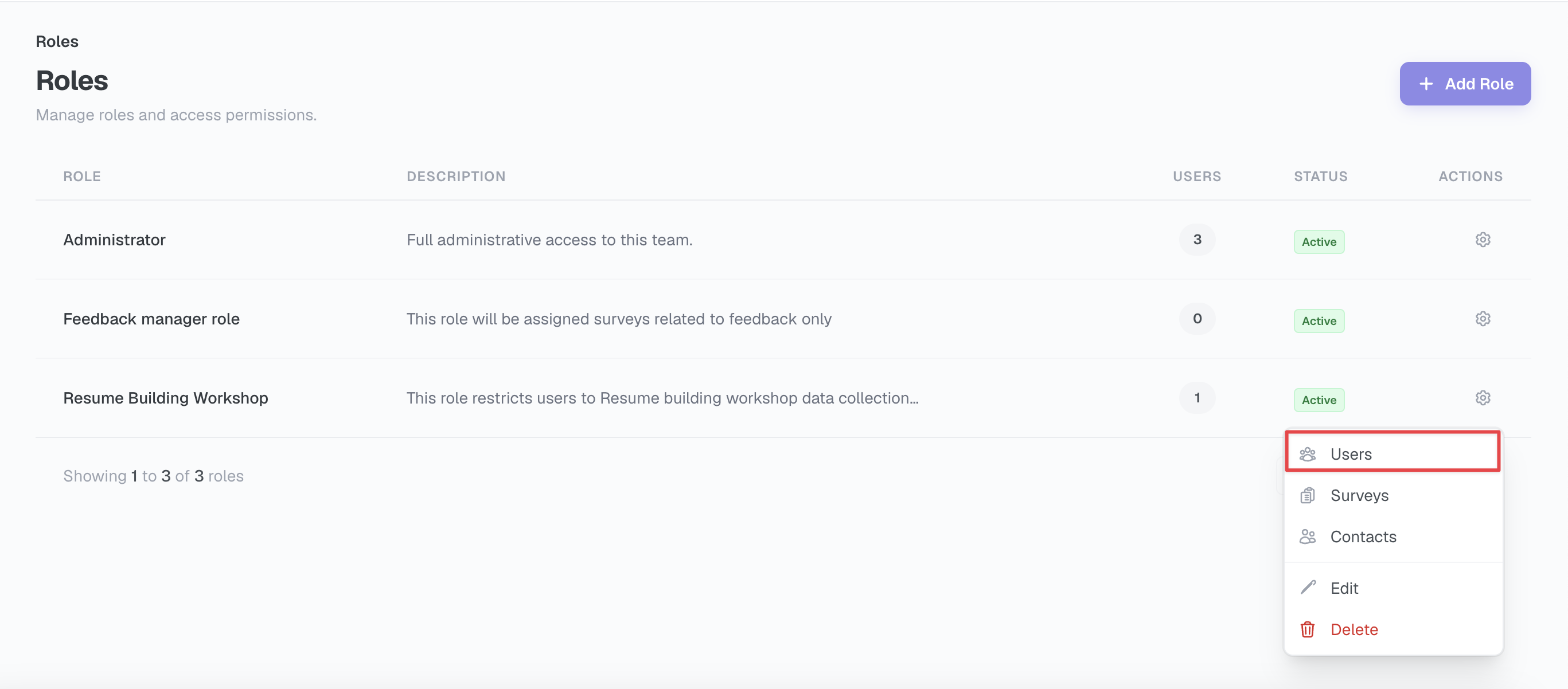
Click on the settings icon corresponding to the role to which we need to assign permissions.
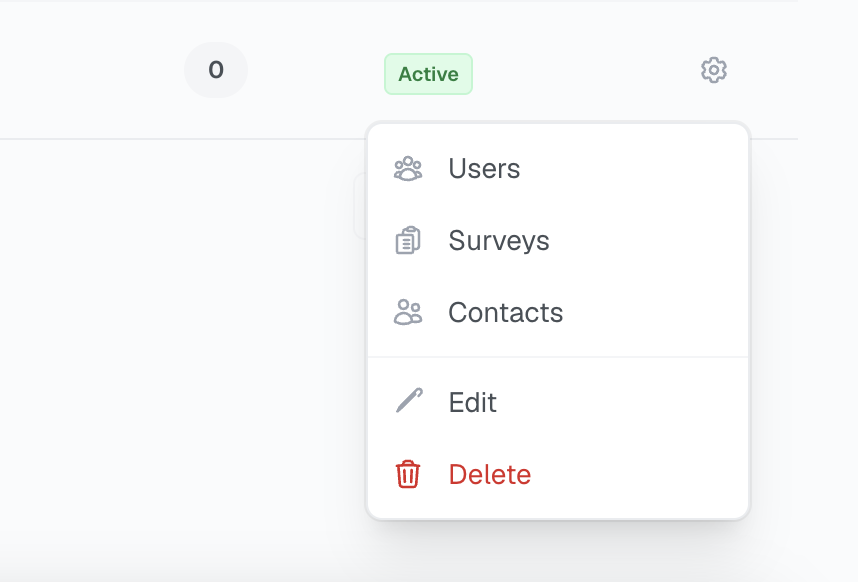
For example, to give a role access to specific surveys, we will click on surveys, and same goes for contacts.
Users option lets us add users to the role we just created.
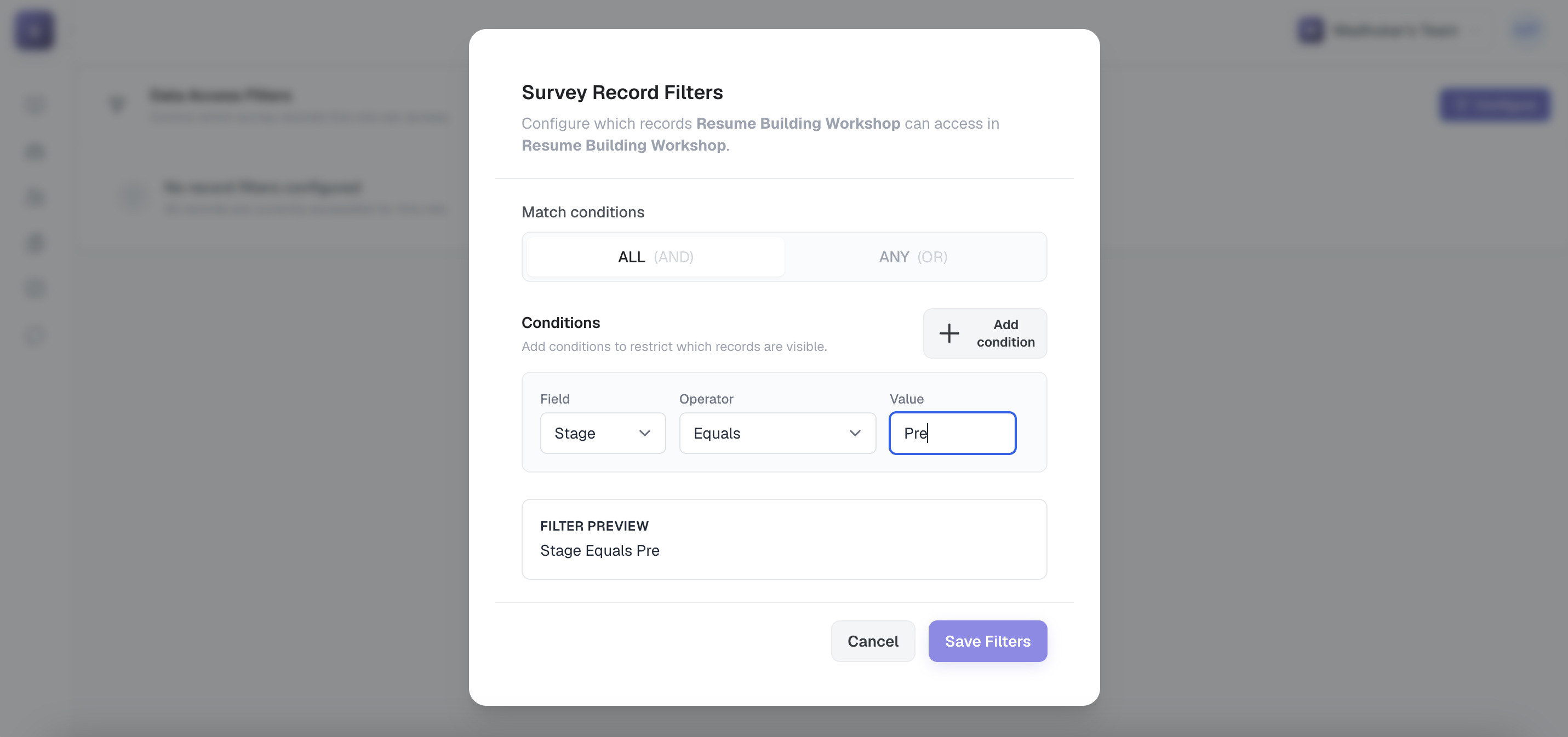
We can create advanced filters to restrict a role to specific records in contacts or surveys by configuring Filters, like so

Step 3: Assign users to the role
The last step of this process is to add users to the role we just created.